Every setting, explained
The studio has eleven panels down the left. This covers what each control does, in the same order, with real rendered pages showing the difference. Every picture below is genuine output from the same renderer the download uses.
Start from a style
Sidebar panel Start from a style
Five presets, each setting the grid size, difficulty and typography in one click. They are a starting point, not a commitment: everything stays editable afterwards, and the badge clears the moment you change any field by hand.
A preset never touches your words, your seed or the number of puzzles. That is deliberate. Clicking a preset to try a different look should not quietly discard content you have already set up.
- Classic
- A 20×20 grid of eighteen words. The studio’s starting point, and the baseline every other preset is defined against.
- Kids
- 10×10, ten words, no backwards words, big friendly letters in a grey box grid. A reasonable start for anyone under about eight.
- Large Print
- 15×15 with extra-large letters and a high-contrast list. The easiest category to produce well, and one with a real audience.
- Challenge
- Dense 25×25 packed with twenty words and narrow margins, for experienced solvers.
- Compact
- Two puzzles to a page, 16×20, word list down the spine side, no border and no hint. Halves the page count.
Saved styles are the other half of this. Once you have settings you like, save them and the next book starts there. That is what makes a series of books look like a series rather than five unrelated ones.
Puzzle title
Sidebar panel Puzzle title
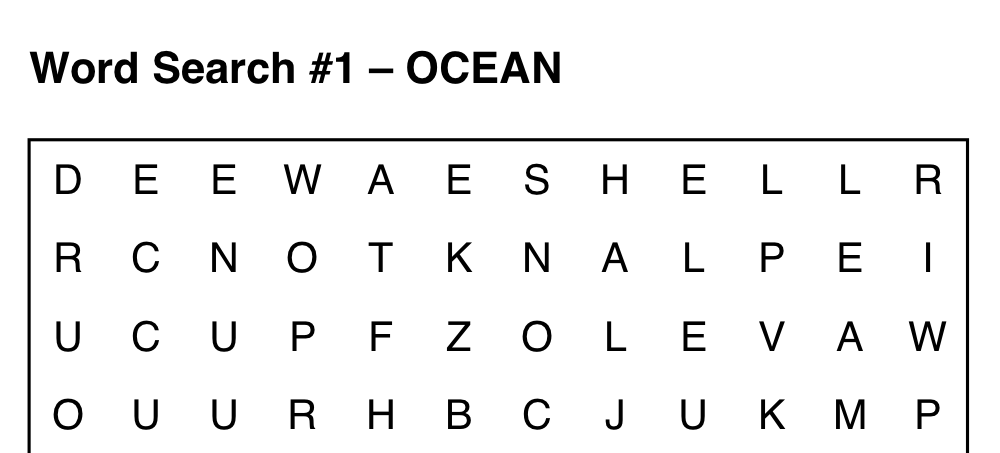
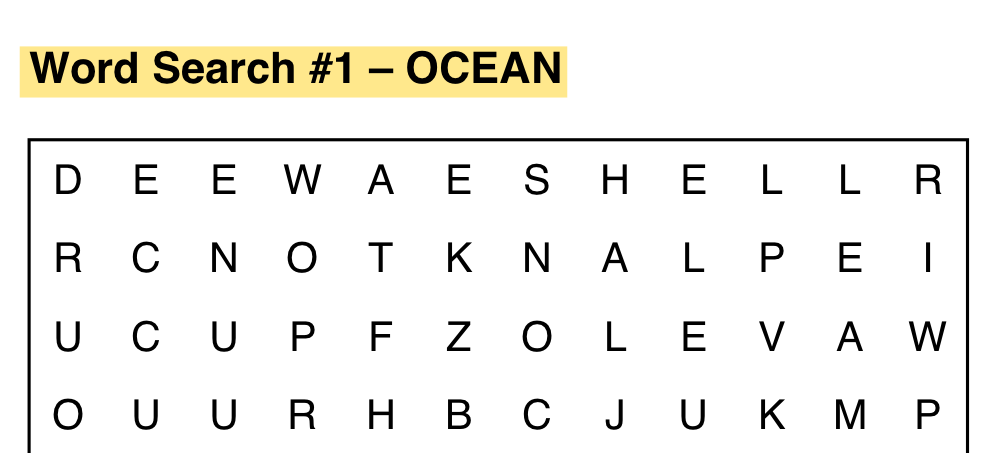
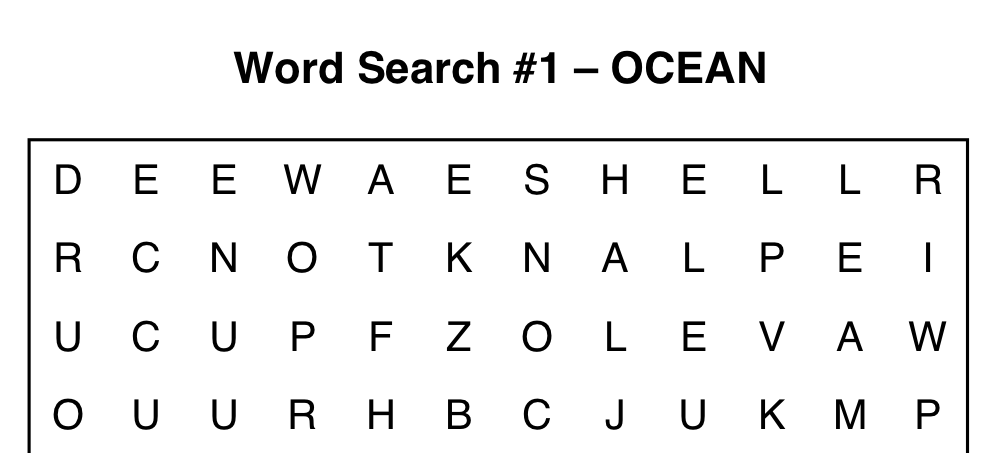
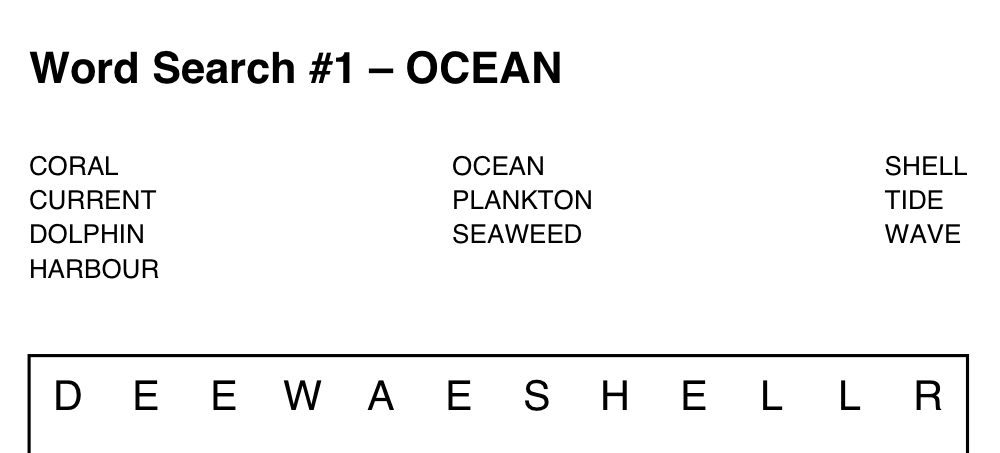
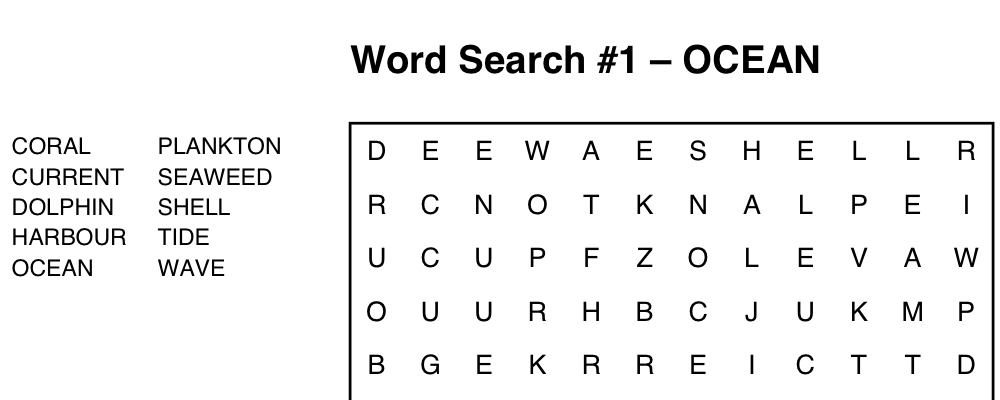
The heading above each grid. It reads Word Search #1 – OCEAN: the number, then the topic from your word list.
Your book title is not part of it. That lives on the cover, and repeating it on all hundred pages would take the line the topic needs while telling the reader nothing.
- Numbering
- Three headings: Word Search #1 – OCEAN, the number alone as 1 – OCEAN, or just OCEAN. Numbering runs underneath whichever you pick, so the solution hints keep working.
- Alignment
- Left, centre, right, or interior / exterior, which follow the spine and swap sides between odd and even pages. Everything aligns to the grid, not the page margin, so the heading shares an edge with the thing it labels.
- Title color
- Any colour. Black prints cleanly on a mono photocopier; anything else does not.
- Shade behind title
- A band behind the heading. Turning it on reveals Shade color and Shade opacity.
Words
Sidebar panel Words
One topic per line: a title, a colon, then the words separated by commas. One topic makes one puzzle.
That is the whole format. Words with spaces are fine: SEA BREEZE prints with its space in the word list and hides in the grid as SEABREEZE, which is how word searches have always worked.
You can also pick from the topic library instead of typing, and mix the two. Pasting your own lists is unlimited on every plan, however many words and however many topics.
Digits do not work. A grid holds letters, so MP3 PLAYER would hide as MPPLAYER and never be findable. Spell them out: MP THREE PLAYER.
Puzzle settings
Sidebar panel Puzzle settings
Difficulty lives here, and it has far less to do with the words than with three numbers.
- # Puzzles
- How many puzzles the book contains. Topics repeat in rounds if you ask for more puzzles than topics, reshuffled each round so a topic’s puzzles spread through the book rather than clustering.
- Words / puzzle
- How many of the topic’s words to hide. Fewer words in a big grid is harder, not easier — every letter between them is a distractor.
- Rows and Cols
- Grid size, and the single biggest lever on difficulty. A 10×10 is a different activity from a 15×15. A word longer than the grid’s longer side cannot be hidden in it and is left out — the studio names any it drops before you download.
- Seed
- Fixes the randomness. The same words and the same seed rebuild the identical book, letter for letter. Change it and you get a completely different arrangement from the same words.
- Allow reversed
- Words running backwards. Off makes a puzzle dramatically easier and is the right choice for young children.
The seed is new on every visit. Two people picking the same topic on the same day get different books. If you want to reprint a worksheet exactly next term, write the seed down — it is the only thing you need to reproduce it.
Page & margins
Sidebar panel Page & Margins
Trim size is the decision people make last and should make first, because it decides how much room each letter gets.
On Letter, a 20-column grid gives each cell about 0.36 inches. On 6×9 the same grid gives about 0.23 inches, roughly two thirds. A grid that reads comfortably at one size can be genuinely hard to use at the other, so build at the size you intend to print.
- Page size
- Letter (8.5×11) or 6×9. Both are free.
- Same margins on every page
- Tick it and you set one page instead of two, with both sides equal. Right for anything you are printing loose and handing out; wrong for a bound book.
- Odd-page / Even-page margins (in)
- Top, bottom, left and right in inches. The wide edge is the inside one, and it swaps between odd and even pages. With the box ticked these collapse into a single Margins (in).
- Max cell size (in)
- Stops the grid growing to fill the page when there are few words. Without it, a six-word puzzle produces comically large letters.
- Header gap (in)
- Space between the heading and the top of the grid.
Printers require more room on the inside edge, and the requirement grows with page count because thicker books curve more. Check your printer’s current specification for your page count and trim size before committing to a long book.
Layout
Sidebar panel Layout
Where things sit on the page, and how many pages the book ends up being. The count under the preview updates as you change these, so you can hit a target length before generating.
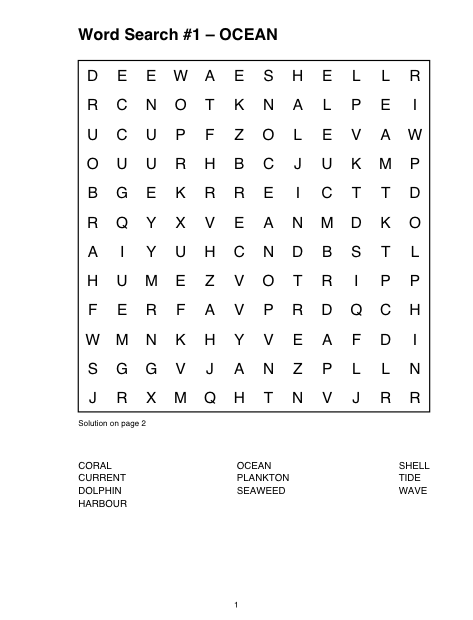
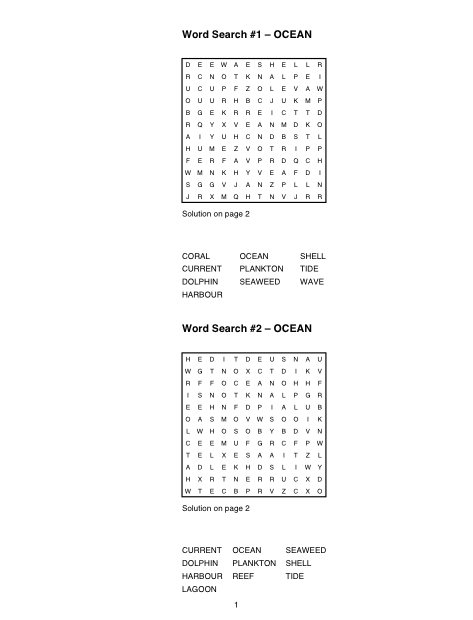
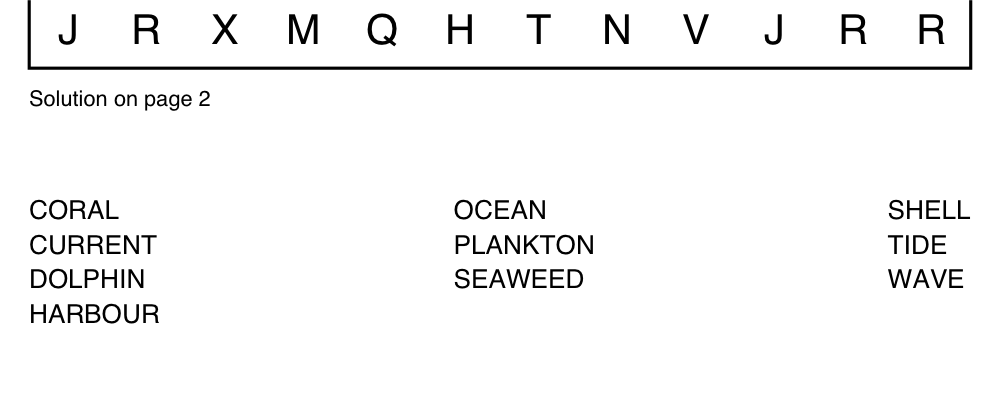
Where the word list sits
- Show word list
- Off prints the grid alone and leaves the space empty, for a list you would rather set yourself in a design tool. The answer pages are unaffected.
- Puzzles / page
- One or two.
- Word list position
- Bottom, top, or interior / exterior, which sit beside the grid and follow the spine.
- List gap (in)
- Space between the grid and the list.
- Line spacing
- Space between the lines of the list, as a multiple of the normal line height. 1 sets them solid; 1.5 puts half a line of air between the words. The type size is untouched, so this buys readability without shrinking anything.
- Word list order
- Alphabetical, or longest first, which is the order they were placed in the grid.
- Word-list cols
- How many columns. Beside the grid, columns are dropped automatically if the strip is too narrow.
- Word list align
- Left, centre, right, interior, exterior, or justify, which widens the gaps so the block spans the grid exactly.
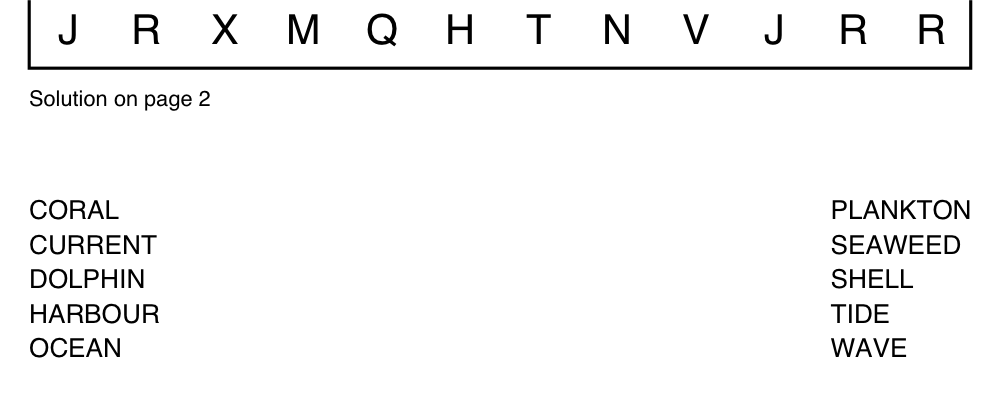
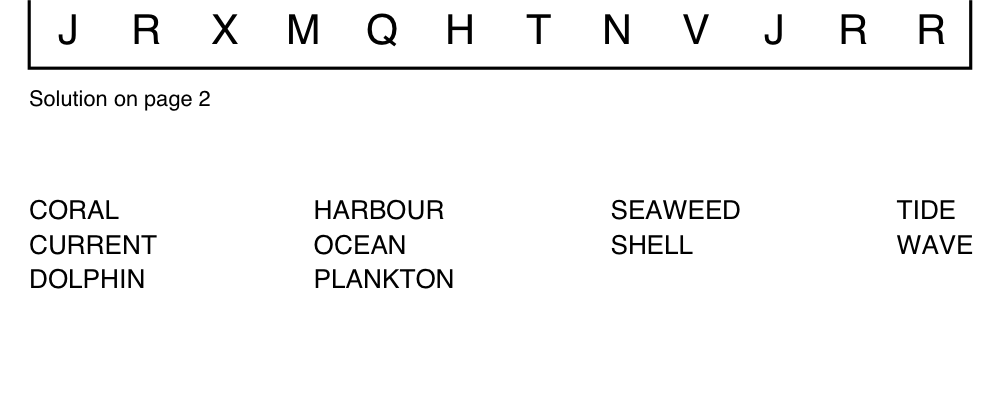
The list shrinks rather than spilling. If your words are too long for the column count you asked for, the gaps close first and then the type shrinks, down to a floor. Nothing runs off the page — but if the list looks small, that is what has happened, and fewer columns will give it back.
The size is chosen once for the whole book, from whichever page has the widest list, so the type does not change as the reader turns the pages. One long phrase in one topic therefore sets the list size everywhere — which is the price of a book that looks like a book.
Fonts
Sidebar panel Fonts
Forty-six families, all free on every plan, set separately for the heading, the grid letters and the word list.
The two factor fields are the unusual ones. They set letter size as points per inch of cell rather than a fixed size, so the letters keep their proportion when the grid changes size. A factor of 40 in a half-inch cell gives 20pt letters.
- Title font / Title size (pt)
- The heading above each grid, 10 to 72pt. Bigger headings eat grid height on a crowded page.
- Grid letters
- The letters in the puzzle. Legibility matters more here than anywhere: a decorative face that reads nicely as a heading can make an I and a J indistinguishable in a grid.
- Word list font / size
- The list beneath or beside the grid, set in points rather than by factor, since it does not scale with the grid.
- Hint font / size, Page number font / size
- Gathered here with every other typeface, rather than beside the controls that position them.
- Factor (puzzle)
- Letter size as points per inch of cell, so the letters keep their proportion when the grid changes size. 40 in a half-inch cell gives 20pt letters.
Appearance
Sidebar panel Appearance
How the grid itself is drawn. Cell lines help small hands track a row and get in the way for everyone else, which is why the Kids preset turns them on and the others do not.
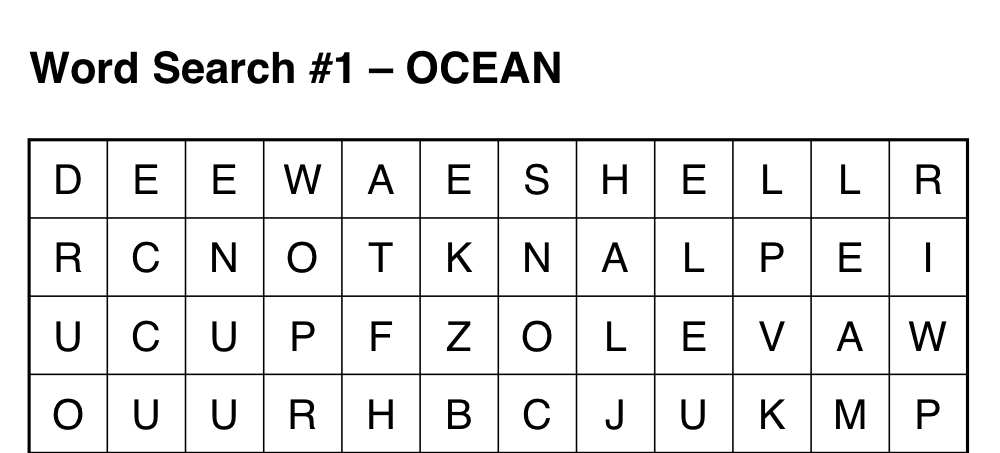
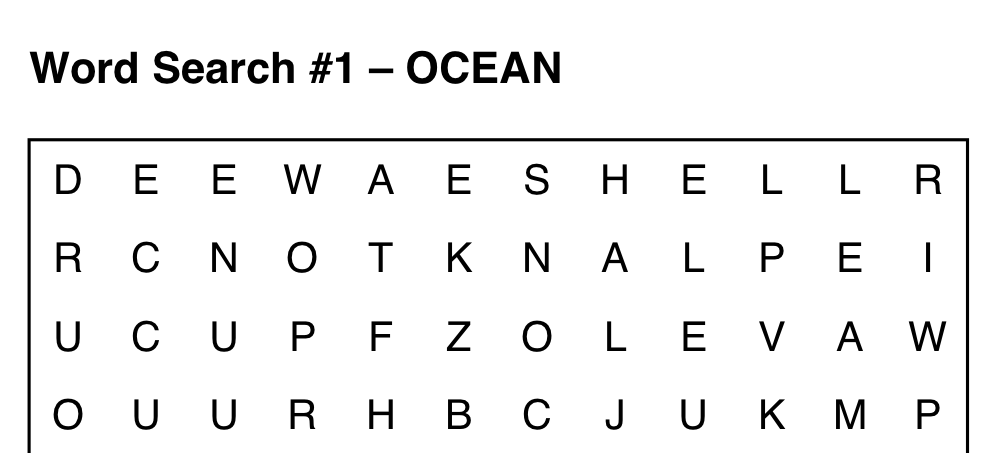
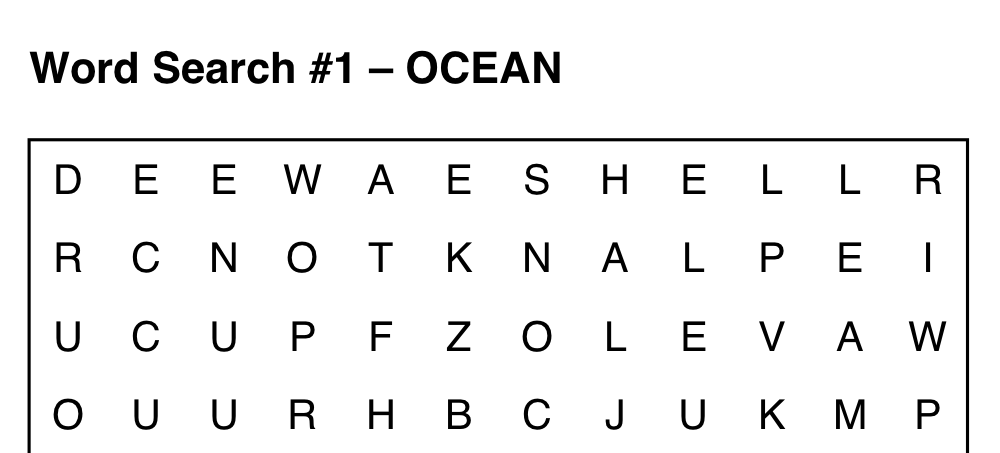
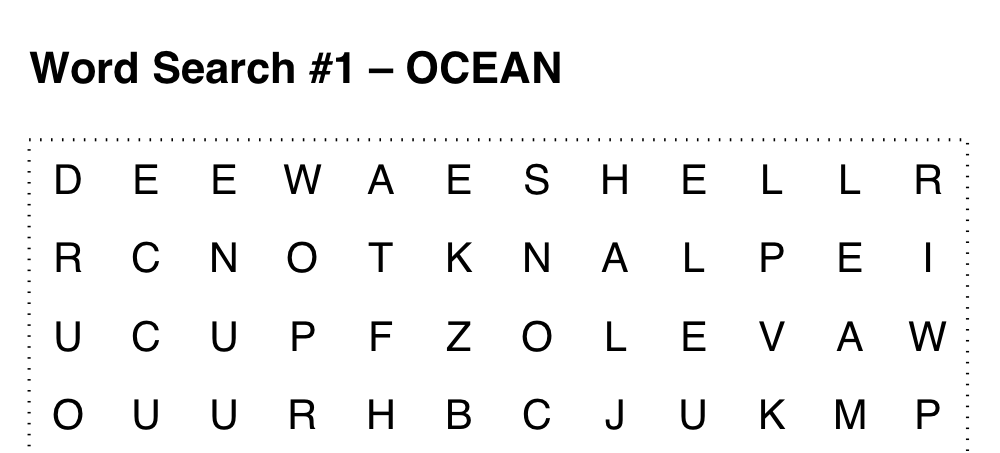
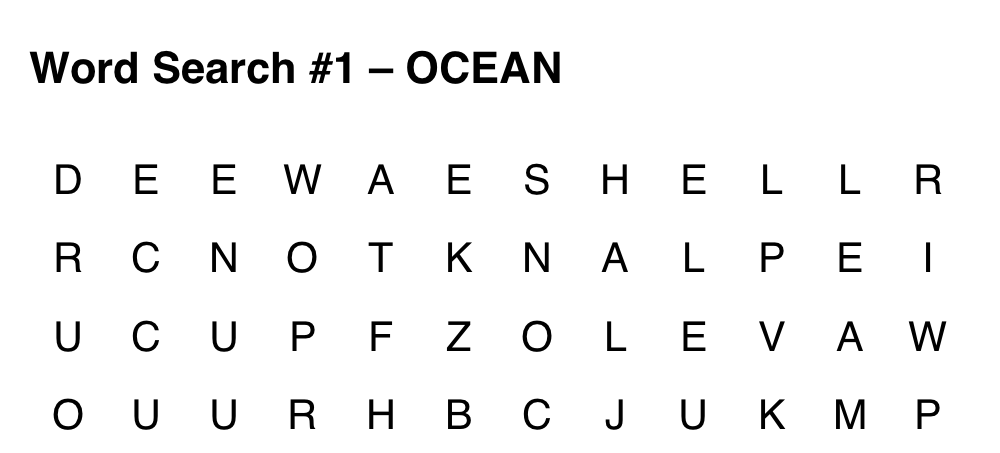
- Show cell lines
- A box around every letter.
- Show outer border
- A frame around the whole grid.
- Border style
- Solid, dashed or dotted.
- Border stroke (in)
- Line thickness in inches, 0.005 to 0.08.
- Letters color
- The letters, and the word list and hint that share their ink.
- Grid & border color
- The cell rules and the frame around them, set apart from the letters. Grey lines under black letters is the usual reason: the boxes guide the eye without competing with what is being read.
Solutions
Sidebar panel Solutions
Every book gets an answer section. It matters more than it sounds: it is what lets a puzzle be handed to a teaching assistant or a grandparent without the person marking it having to solve it first.
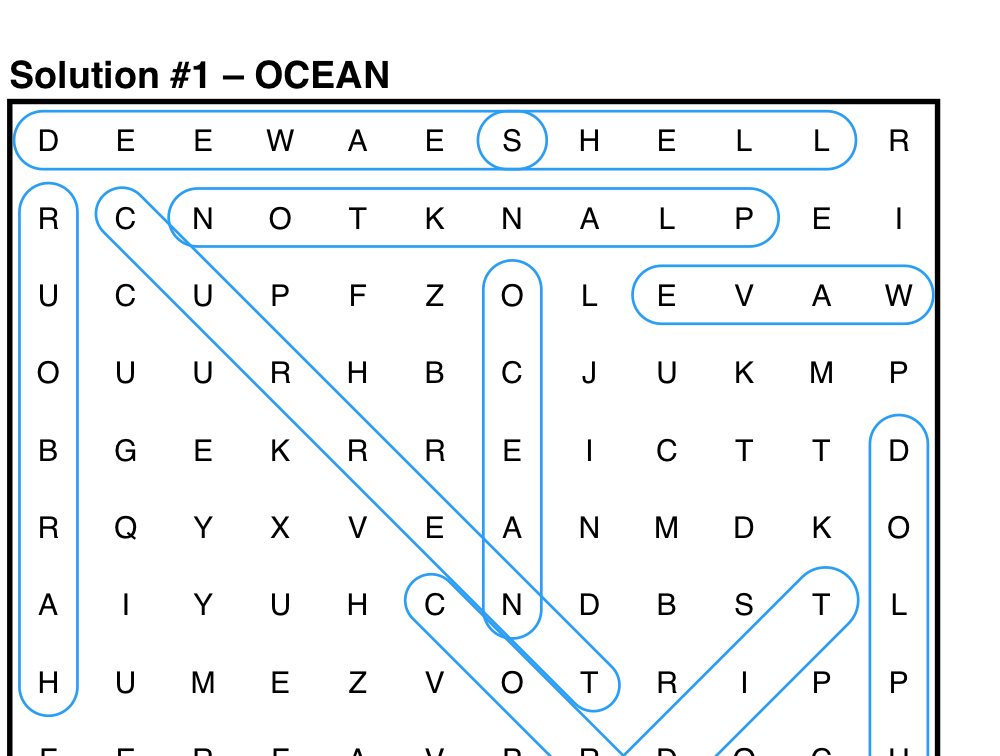
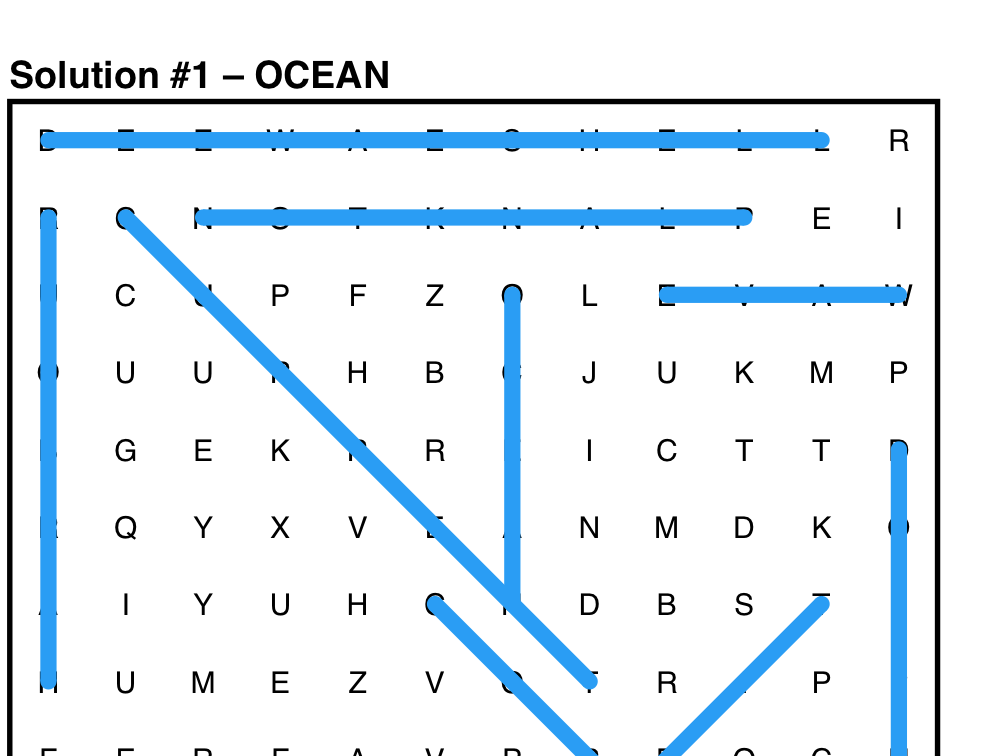
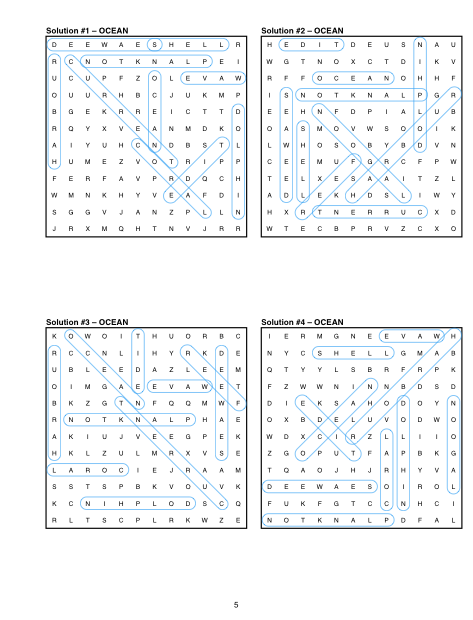
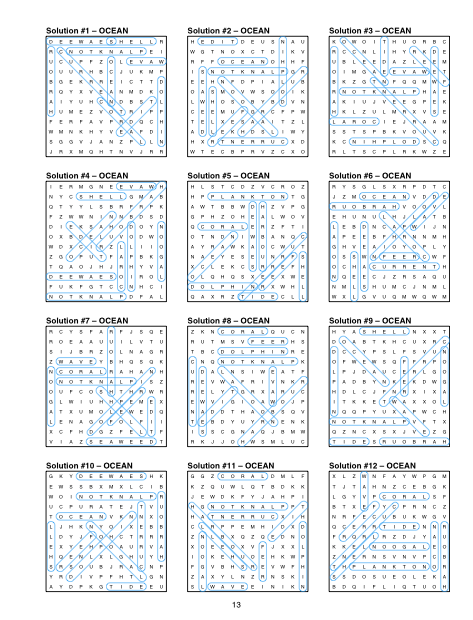
- Solutions / page
- 1, 4, 6, 8, 9 or 12. More per page means fewer pages of paper your buyer pays to print.
- Answer overlay style
- Outside capsule, filled highlight, or none.
- Overlay color
- Any colour. It prints grey on a mono printer, so pick something that still reads when it does.
- Letter factor
- Letter size on the answer pages, in points per inch of cell. The same idea as Factor (puzzle) under Fonts, but these grids are smaller and usually want proportionally smaller letters.
- H/V width factor and Diag width factor
- How fat the capsule is relative to the cell, set separately because a diagonal covers more ground and looks heavier at the same width.
- Cap overhang (in)
- How far the capsule extends past the first and last letter.
- Show solution hint
- The line on each puzzle page pointing at its answer.
- Hint wording
- A template.
{p}is replaced with the page the answer is on. - Hint position
- Under the grid, or down at the page foot on the same line as the page number.
- Gap (in)
- Space between the grid and the hint. Its typeface and size live in Fonts, with everything else that sets type.
- Align, odd pages / Align, even pages
- Set separately, so the hint can follow the spine the way the heading does.
Page numbers
Sidebar panel Page numbers
Numbering runs across the whole book, puzzles and answers alike, which is what lets the solution hints point at a real page.
- Show page numbers
- Off removes them entirely and frees the space at the foot.
- Format
1,Page 1,- 1 -,1 of 40orPage 1 of 40.- Color
- Independent of everything else on the page. The typeface and size live in Fonts.
- Odd pages / Even pages
- Ten positions each, including outer corner and inner corner, which follow the spine and swap sides between facing pages.
Outer corner is the conventional choice for a bound book. It puts the number on the edge a reader’s thumb flicks past, which is the whole point of a page number.
Download name
Sidebar panel Download name
Book title (optional) names the downloaded file and appears on no page. The name carries what actually differs between two attempts at the same book, and the studio shows it under the field as you type:
Left empty, the file takes its name from the first topic. The point is that a folder of drafts is tellable apart without opening every one.
The studio opens with two topics already loaded, so there is something on the page from the first second. Building and previewing needs no account.
Open the studio